Campaigns
Write a campaign in the admin, preview it as any subscriber in the list, send yourself a test, then send it now or schedule it as a Resend broadcast.
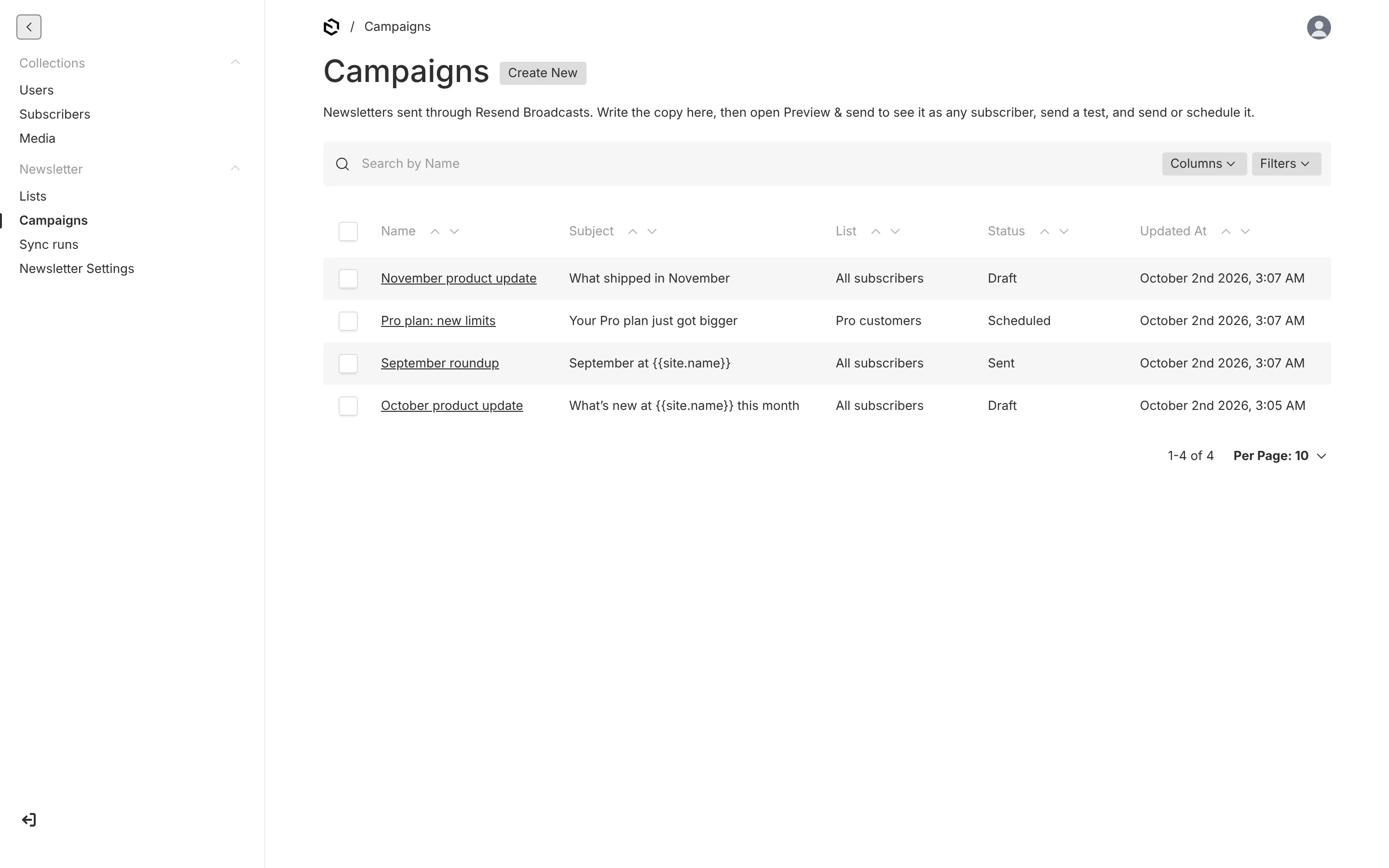
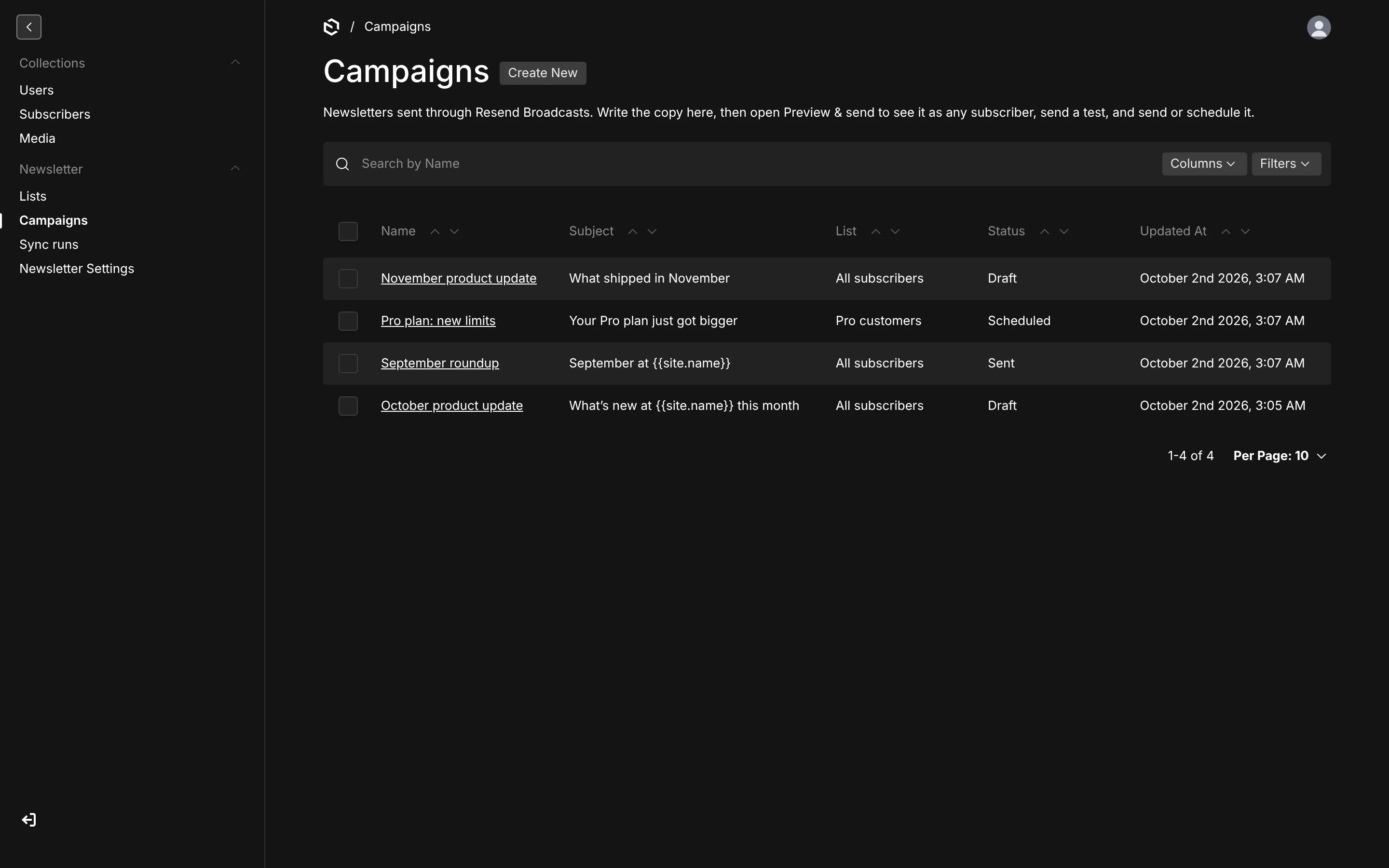
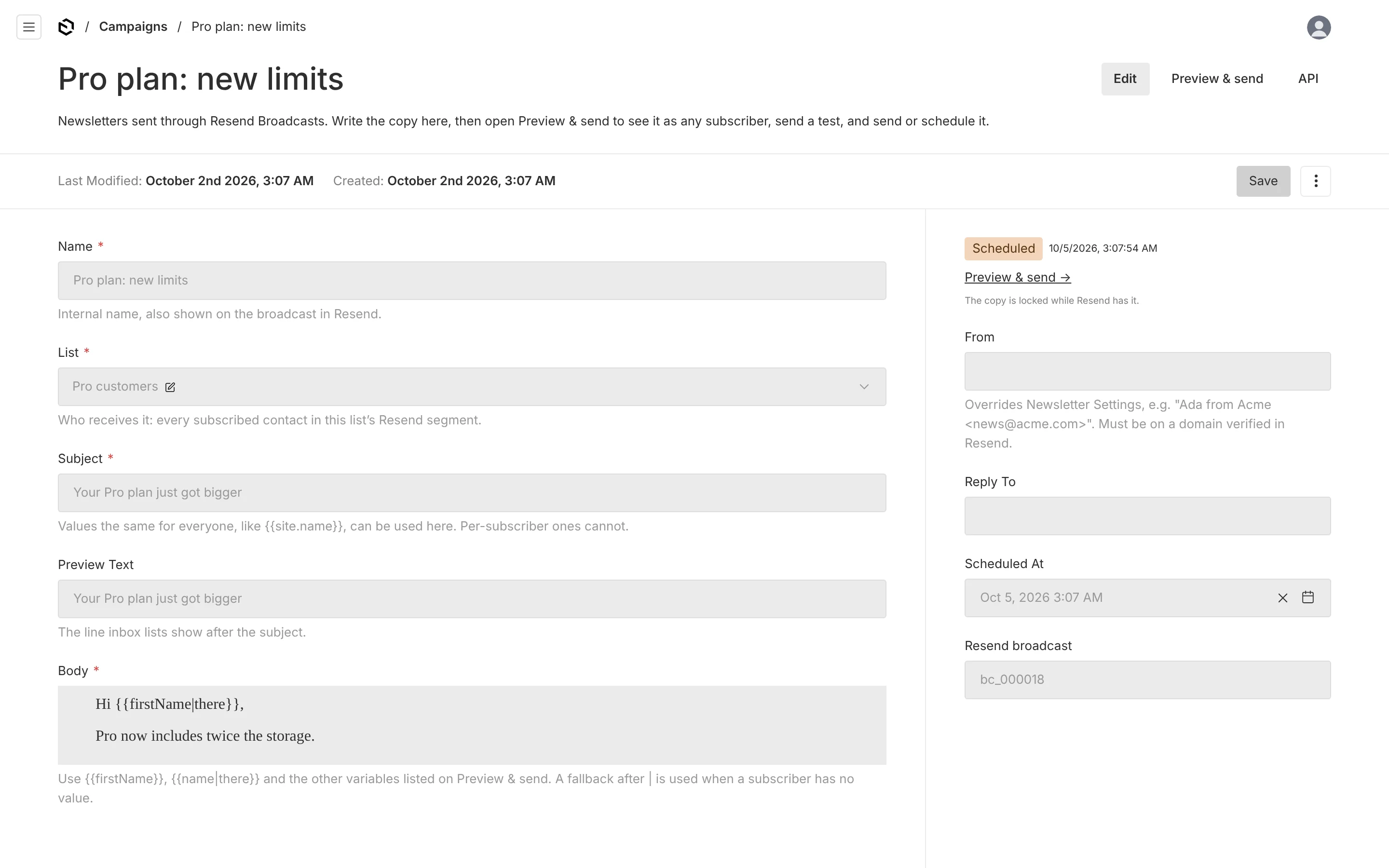
A campaign is one email to one list. It lives in Newsletter → Campaigns with two tabs: Edit, where the copy is written, and Preview & send.
Writing
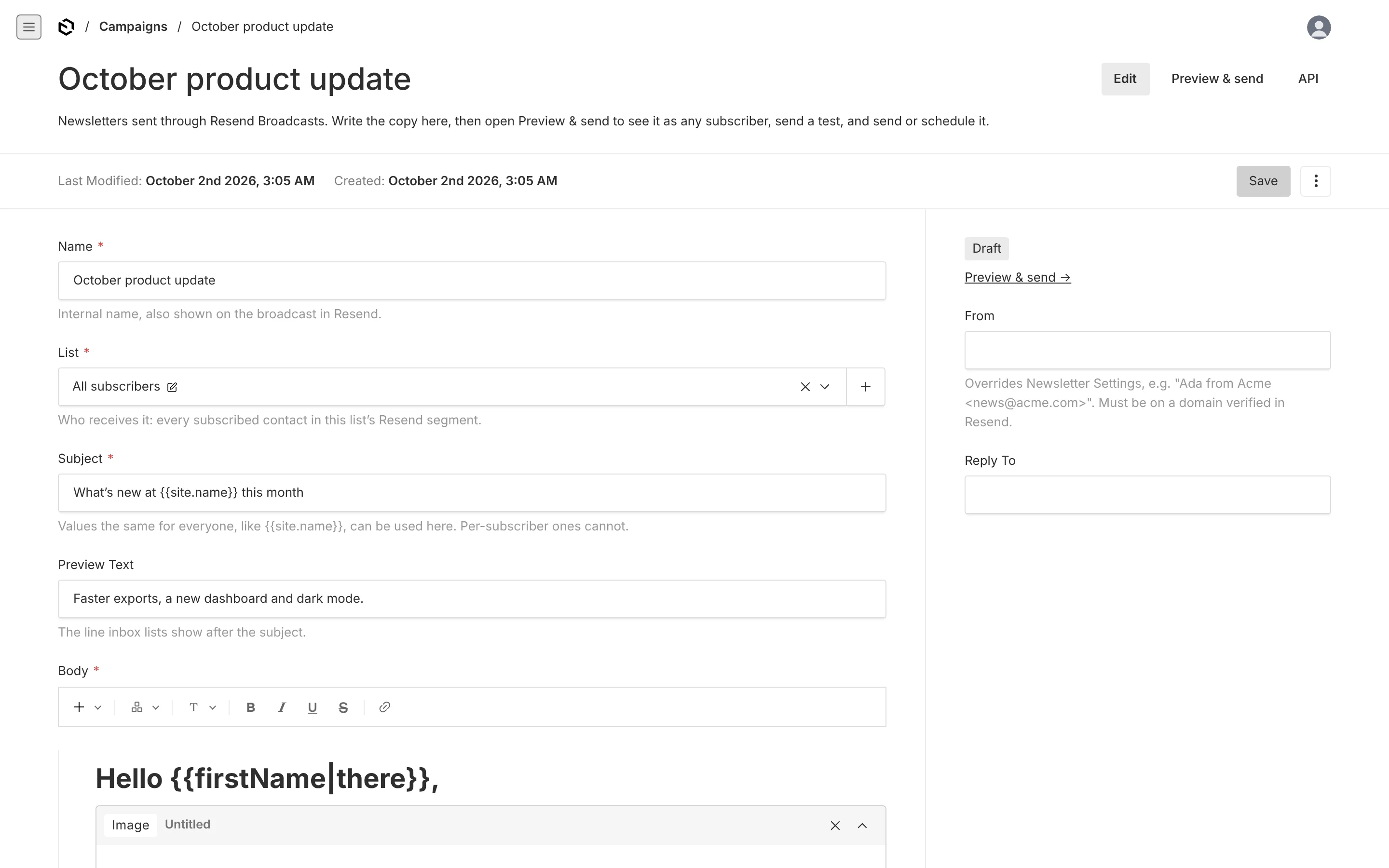
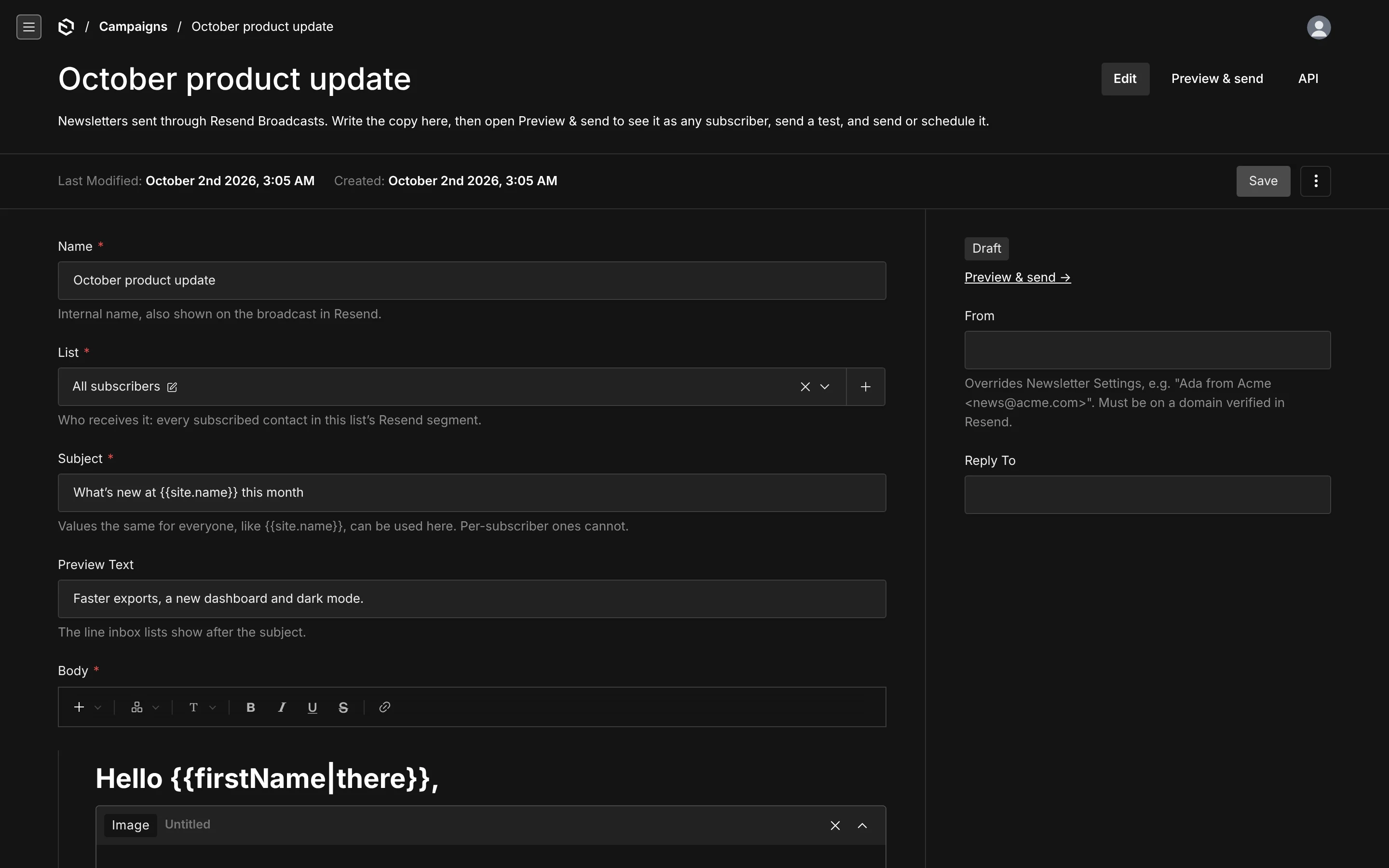
| Field | What it is |
|---|---|
| Name | internal; also the broadcast's name in Resend |
| List | who receives it |
| Subject | the subject line |
| Preview text | the line inbox lists show after the subject |
| Body | the email, in a Lexical editor limited to what renders reliably in mail clients |
| From, Reply to | sidebar overrides of Newsletter Settings |
| Template | only shown when you register more than one template |
The body editor offers paragraphs, three heading sizes, bold, italic, underline, strikethrough, links, lists, quotes, a horizontal rule, a Button block and — when the plugin is given a media collection — an Image block. It is the same editor as Transactional Emails, including the button's plain-text fallback link. Pass your own editor to the plugin to change the feature set.
Images
Images go in through the Image block (type /image, or use the + menu). It appears once the plugin knows your upload collection:
resendBroadcastsPlugin({
  media: { collection: 'media' },
  // …
})| Field | What it does |
|---|---|
| Image | an upload from that collection |
| Alt | read by screen readers and shown when images are blocked; empty uses the upload's own alt |
| Width | full (520px), half (260px) or a third (174px) of the content column — never wider than the file itself |
| Align | left or centre, for half and third widths |
| Link | optional; clicking the image opens it. Variables work |
| Caption | optional small print under the image. Variables work |
The image is sent with its width and height attributes as well as CSS, because Outlook ignores CSS widths, and with max-width: 100%, so it shrinks on a phone.
Lexical's own upload node is left out on purpose: it has no width limit, and nothing makes its URL absolute.
Images must be public
A mail client downloads every image from the internet, without your login. So the plugin:
- makes URLs absolute. A relative upload URL is put on
media.baseUrl, or the server URL when that is not set. If Payload already returns absolute URLs on your server URL andmedia.baseUrlnames a different public host, the URL is moved to it — useful when the admin runs on an internal host. - checks access. An upload Payload serves itself (
/api/media/file/…) must be readable without a login. Give the media collectionaccess: { read: () => true }, or serve uploads from public storage such as S3 or a CDN. - refuses to send what readers could not load. Preview & send lists such images in a red banner and keeps Send disabled. The same check runs on the server before every broadcast. URLs on
localhost, private networks and.localhosts count as not public;media.allowPrivateUrls: trueturns that part of the check off for development, never the login check.
Test sends are not blocked, so you can still look at a draft — but a test sent from a laptop shows broken images in a real inbox for exactly the reasons above.
Variables
Variables are written in double braces and filled in per subscriber.
| Variable | Value | What Resend receives |
|---|---|---|
{{email}} | the address | {{{contact.email}}} |
{{firstName}} | given name | {{{contact.first_name}}} |
{{lastName}} | family name | {{{contact.last_name}}} |
{{name}} | full name | {{{contact.full_name}}} |
{{unsubscribeUrl}} | this subscriber's unsubscribe link | {{{RESEND_UNSUBSCRIBE_URL}}} |
{{plan}}, … | each source property | {{{contact.plan}}} |
{{site.name}}, {{site.url}}, {{year}} | from Newsletter Settings | the value itself |
Add a fallback after a bar for people without a value: {{firstName|there}} reads "Hi Ada" for Ada and "Hi there" for someone without a name. A property's own fallback applies when you do not write one.
The trick that makes this work: the campaign is rendered once, and per-subscriber variables become Resend's own placeholders — {{firstName|there}} is sent as {{{contact.first_name|there}}} — so Resend fills them in for each contact as it sends. Values that are the same for everyone, like {{site.name}}, are written in directly. Your own shared values can be added with the variables option.
Saving checks every variable. An unknown name, an unclosed brace, or a variable split by formatting (half of it bold) is rejected with a message that lists what is available.
The subject and preview text accept only values that are the same for everyone, such as {{site.name}}. Resend documents contact placeholders for the email body, not for the subject line, so the plugin does not put per-subscriber placeholders where they might be sent literally.
Preview & send
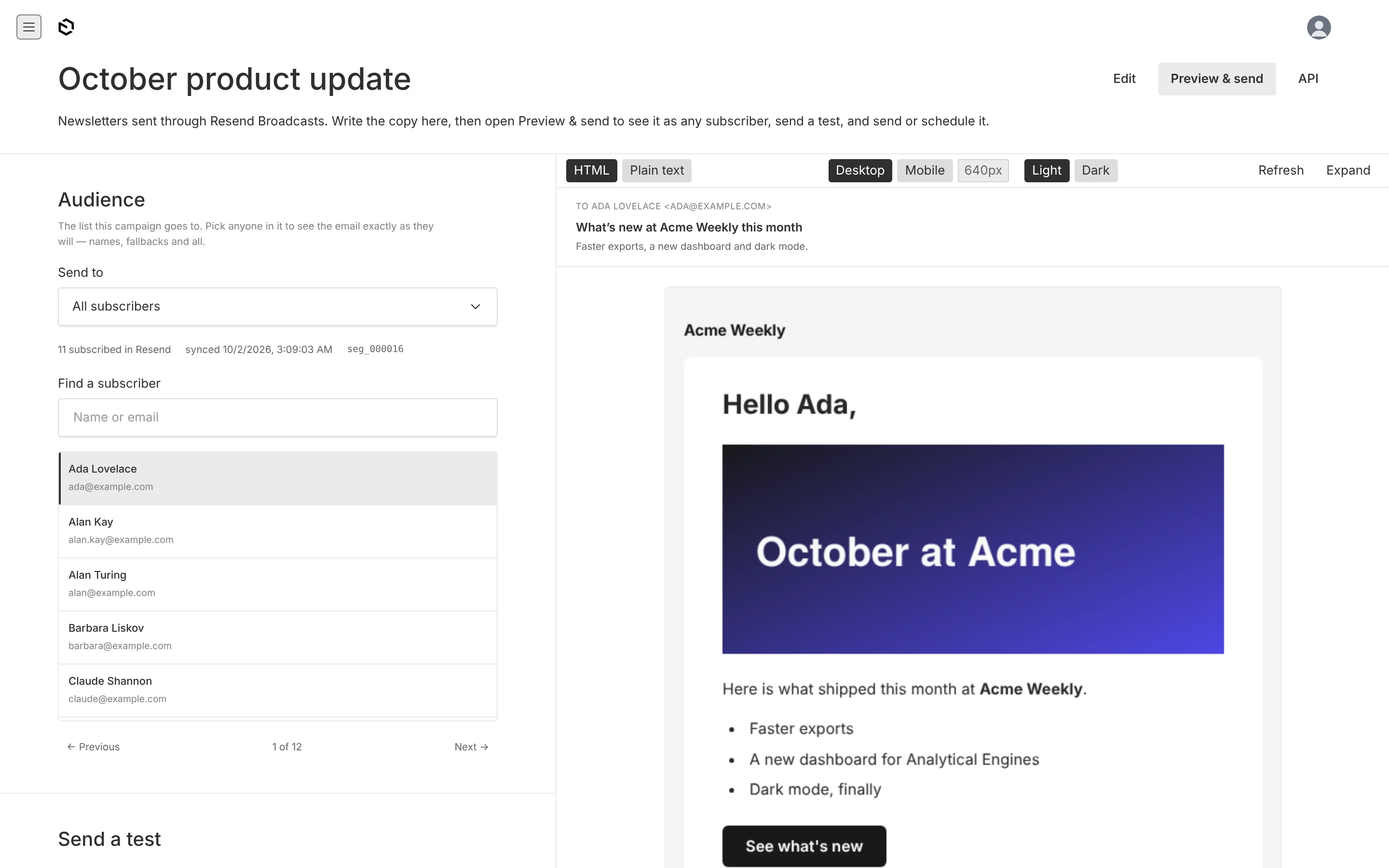
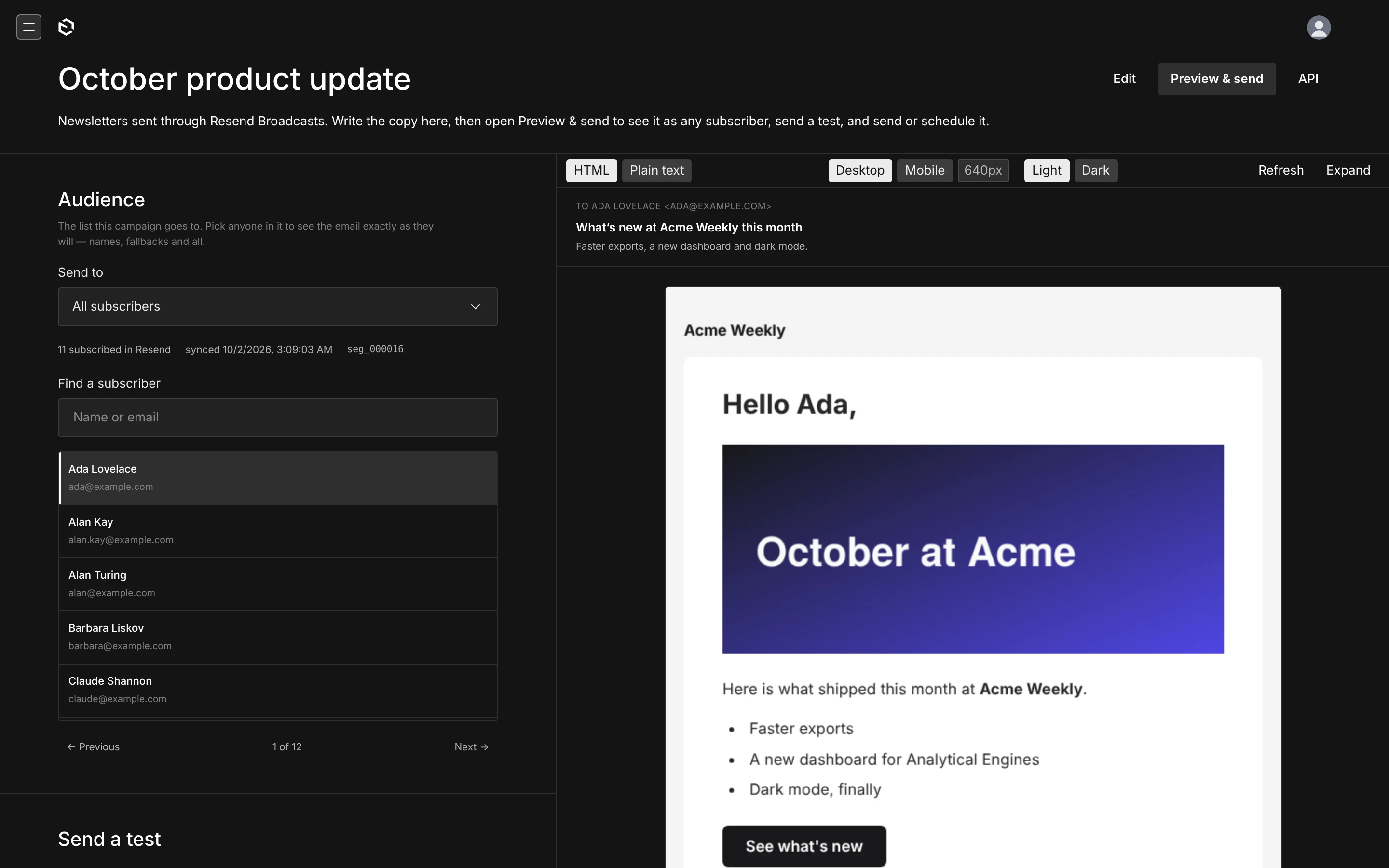
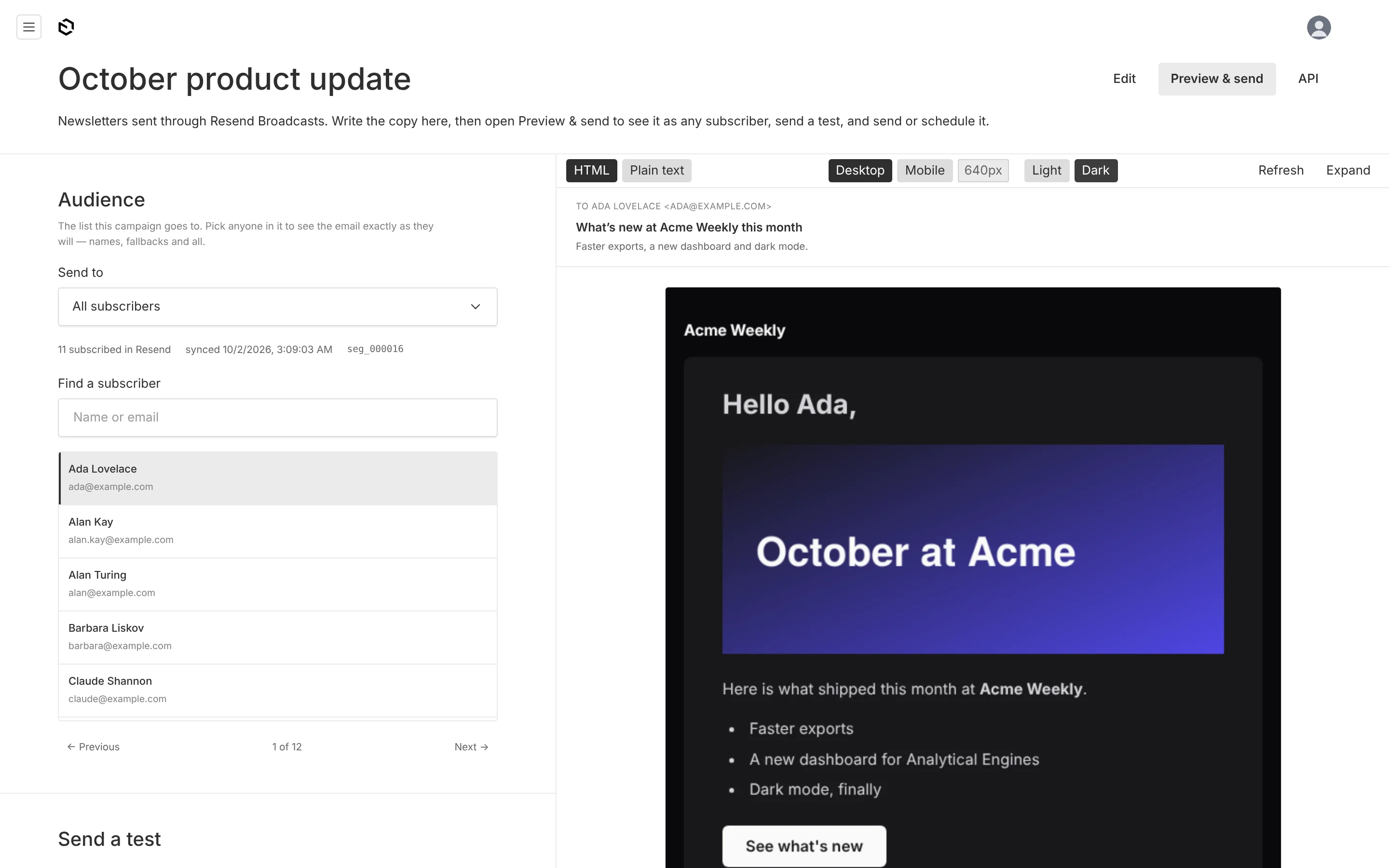
The second tab is laid out like Payload's own live preview: controls on the left, the rendered email in a sticky window on the right, with HTML and plain-text views, desktop and mobile widths, and a light/dark toggle that forces the email's prefers-color-scheme branch.
Audience
Send to is the campaign's list; changing it here saves the campaign. Under it are the list's subscribed count, when it was last synced and its segment id.
Find a subscriber searches the list's members by name or email. Click anyone and the preview re-renders as them — their name, their properties, the fallbacks where they have none — and the header shows who you are looking at. Previous and Next step through the list, across pages. With an empty list the preview uses a sample subscriber.
The picker reads documents with your own access: an editor sees the people they could open in the admin, nobody else.
Send a test
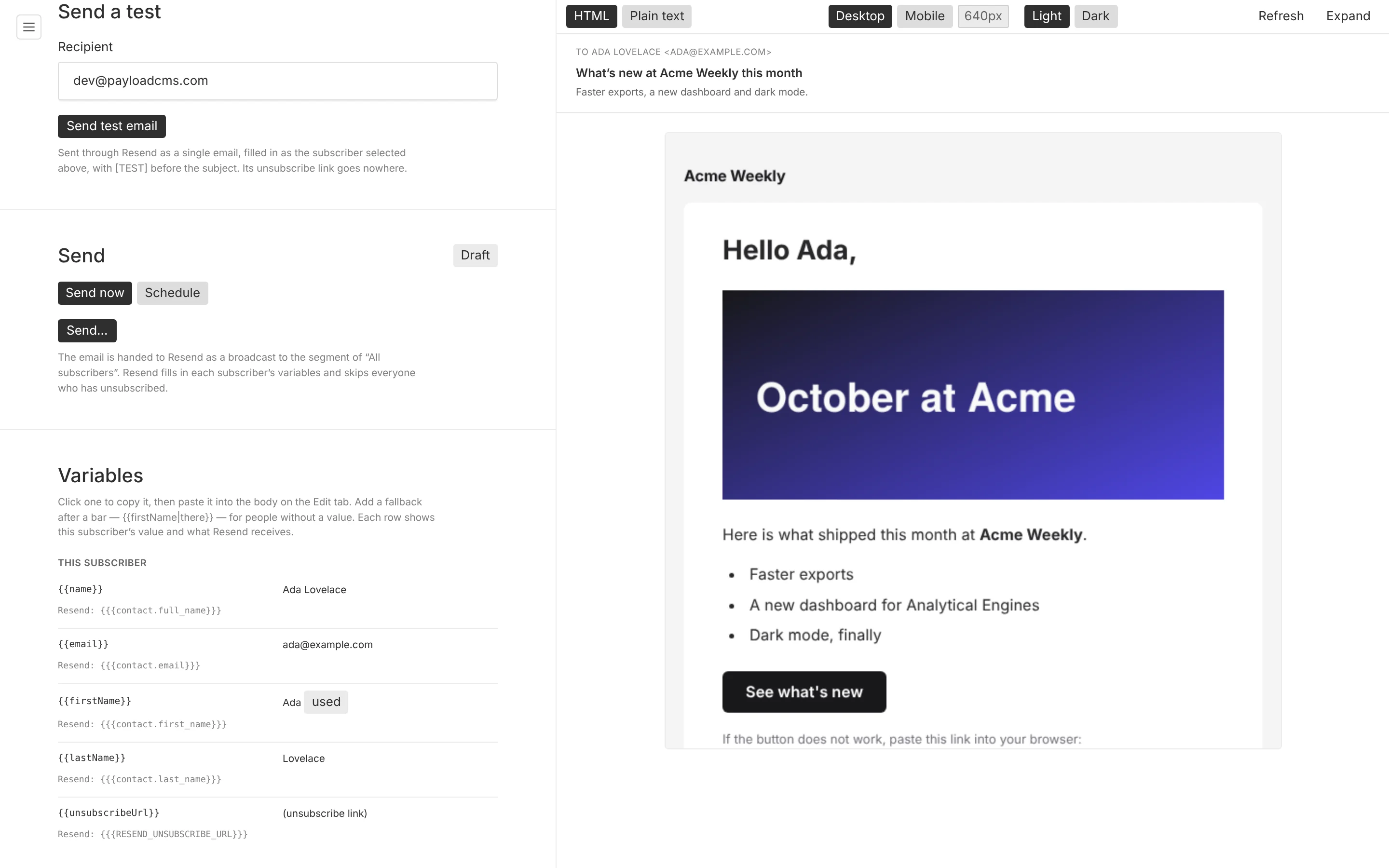
Sends the campaign to any address through Resend's email API, filled in as the subscriber you picked, with [TEST] before the subject. Its unsubscribe link points at your site, not at Resend, so a test never unsubscribes anybody. The default recipient is Newsletter Settings → Test recipient, or your own address.
Send
Choose Send now or Schedule and a date and time, then confirm. The plugin renders the campaign with Resend placeholders, checks it carries the unsubscribe link, and creates a broadcast to the list's segment with send: true — scheduled when you picked a time.
| Status | Means | You can |
|---|---|---|
| Draft | not yet given to Resend | edit, test, send, schedule |
| Scheduled | Resend has it, and will send at the time shown | cancel, which returns it to Draft |
| Sending | Resend is delivering it | check the status |
| Sent | delivered to the segment | duplicate it to reuse the copy |
| Failed | Resend refused it; the error is shown | fix the cause and send again |
While a campaign is scheduled, sending or sent its copy is locked: the fields are read-only in the admin and an API update is refused. Cancelling a schedule deletes the broadcast in Resend and makes the campaign a draft again. Check status asks Resend where the broadcast is, and records Sent with its time once Resend reports it.
The lifecycle fields — status, broadcast id, scheduled and sent times, last error — are written only by the plugin. Values sent through the API are ignored, and Duplicate resets them, so a copy of a sent campaign starts as a fresh draft.
Variables
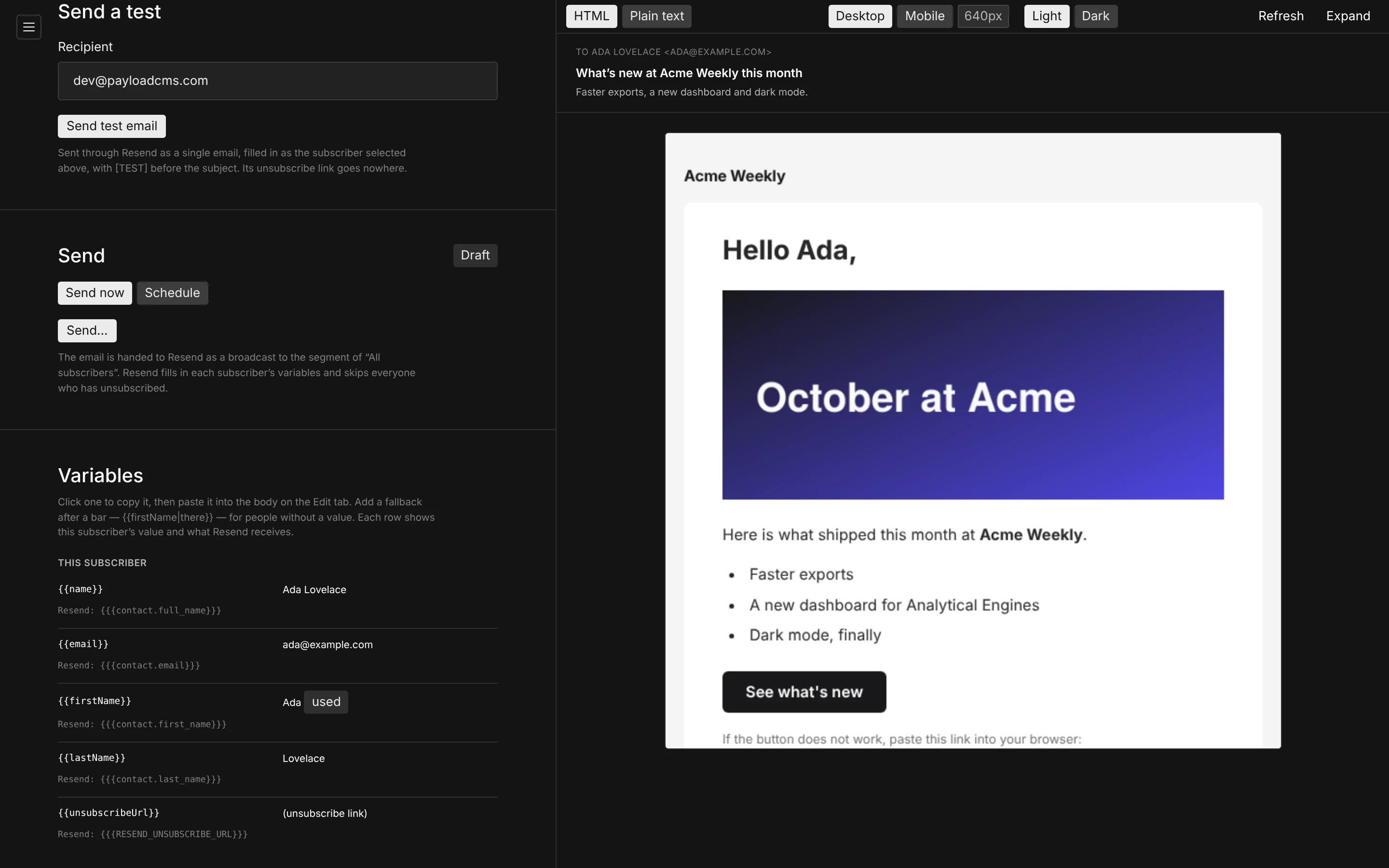
The last panel lists every variable, this subscriber's value for it, what Resend will receive, and whether the campaign uses it. Click one to copy it, then paste it into the body.
Sending from code
await payload.resendBroadcasts.send(campaignId)
await payload.resendBroadcasts.send(campaignId, { scheduledAt: '2026-11-02T08:00:00Z' })
await payload.resendBroadcasts.cancel(campaignId)
await payload.resendBroadcasts.refreshStatus(campaignId)
A schedule must be at least a minute ahead. See API.
Lists
A list is a Resend segment built from one source collection, optionally narrowed by a Payload query. Membership follows the documents.
Templates
The design is a React Email component in your repo, with the same contract as Transactional Emails — so one branded template can serve your transactional mail and your newsletters.